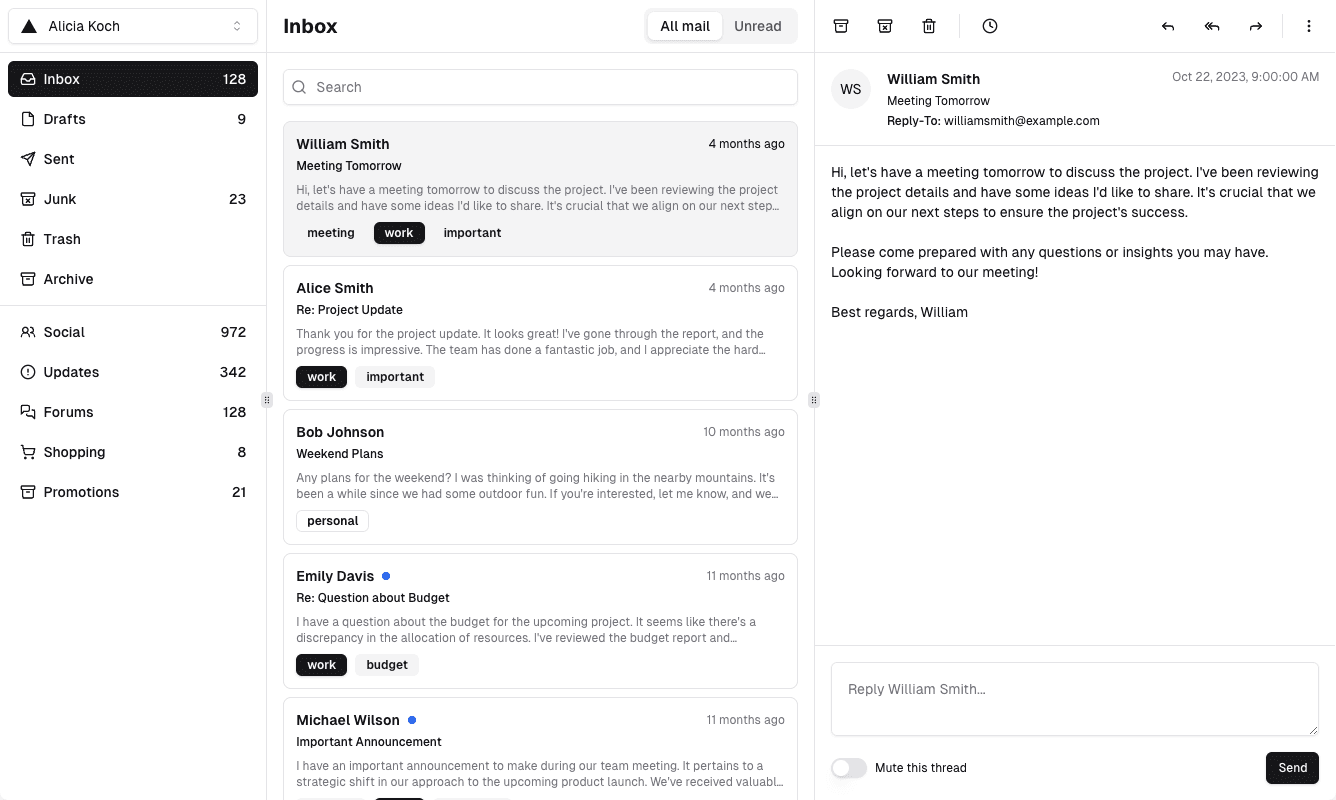

Until this week, the first thing Mail Hugs asked a new user to do was sign in with Google. That is fine if you already have the mailbox you want to work from in Gmail. It is a wall if you do not, or if you just want to see the product before handing it a consent screen.
So setup now starts with a choice:
- Create a Mail Hugs address. We give you an address at mailhugs.com that receives mail immediately. No Google, no consent flow, no DNS.
- Connect Gmail. Sign in with Google once and we keep your existing inbox in sync, with full send and reply.
Both land in the same inbox, with the same AI and the same search. This post explains what each option does, where the first one is still limited, and how to choose.
Option 1: a Mail Hugs address
Pick Create a Mail Hugs address during onboarding, from the "Add account" dialog in the mail view, or from Settings. We generate an address like [email protected] and add it to your account. The inbox shows Waiting for the first message until something arrives.
It is live the moment it exists. Send a test email to it from your phone and it shows up in the inbox, threaded, searchable, and ready for the AI to read. There is nothing to configure.
Under the hood the mail is received by Cloudflare Email Routing and handed straight to Mail Hugs. Nothing is forwarded through a Gmail account, so there is no second copy sitting anywhere else.
What it is good for
- Trying Mail Hugs without a Google account. Sign up with your email, create the address, send yourself a message, and you are using the product in under a minute.
- A clean address for one purpose. Give it to a vendor, a newsletter, a form on your website, or a contractor, and keep that stream out of your main mailbox.
- A shared team address. Team owners can create a shared Mail Hugs address that everyone on the team can read. Point a contact form or a forwarding rule at it and the whole team works the same conversations.
- Catching mail you only need to read and act on. Order confirmations, notifications, alerts from tools you run. The AI can summarise them and search finds them later.
What it does not do yet
A Mail Hugs address is receive-only for now. You can read, search, mark done and ask the AI about anything that arrives, but you cannot send from it or reply from it. The mail view tells you this instead of showing a Send button. If a conversation needs an answer, reply from a connected Gmail account, or ask for the customer's thread to be forwarded there.
The alias is generated for you, so you cannot choose it. The address is also only as private as the people you give it to, like any email address.
Sending from Mail Hugs addresses and addresses on your own domain are next on the list. If either would change how you use the product, tell us and we will let you know when they ship.
Option 2: connect Gmail
Pick Connect Gmail and sign in with Google. You can link a personal Gmail or a Google Workspace mailbox, including a shared one like support@ or sales@. Mail Hugs syncs the recent history and keeps the inbox current from then on. You can reply, compose and send from the address, and every message you send goes through your Gmail as usual.
We never see your password. The connection is a Google sign-in that you can revoke at any time, and disconnecting a mailbox from Settings deletes the mail we synced for it.
Connect Gmail when:
- the mailbox you want to work from already exists in Google;
- you need to reply from it;
- your team already answers customers from support@ in Google Workspace and you want to keep doing that, just together and with AI.
Which should you choose?
| You want to… | Pick |
|---|---|
| See the product before granting Google access | Mail Hugs address |
| Work the inbox you already live in | Connect Gmail |
| Reply to customers from the same address they wrote to | Connect Gmail |
| Give a form, vendor or tool its own address | Mail Hugs address |
| Run a shared team inbox you answer from | Connect Gmail (support@ in Workspace) |
| Run a shared team inbox you mostly read and triage | Mail Hugs address, shared with the team |
You do not have to decide once. An account can have both: a Mail Hugs address for one stream of mail and a Gmail account for the rest. The account switcher moves between them, and search covers all of them.
A quick start, step by step
- Sign up with your email. We send a 6-digit code, no password.
- Choose a personal inbox or create a team.
- Click Create a Mail Hugs address. Copy the address.
- Send it an email from any other account.
- Open the message, ask the AI what it says, mark it done.
- When you are ready to reply to real people, click Connect Gmail and link the mailbox you answer from.
That is the whole setup. If you would rather see it first, book a demo and we will walk you through it with your own mail.